Connect ChatGPT, Claude, or another AI assistant
ClarityTrack is an official ChatGPT App: search for ClarityTrack in ChatGPT and connect in under a minute, no setup required. Claude and any other MCP-compatible client can connect too, using a custom connector URL. Once connected, the AI can read your balances, transactions, budgets, and goals, and answer questions about your real financial data.
How to do it
The fastest path is the ChatGPT Apps menu (search ClarityTrack, click Connect). The steps below show the manual plugin-directory path instead, since it is the one that screenshots cleanly end to end.
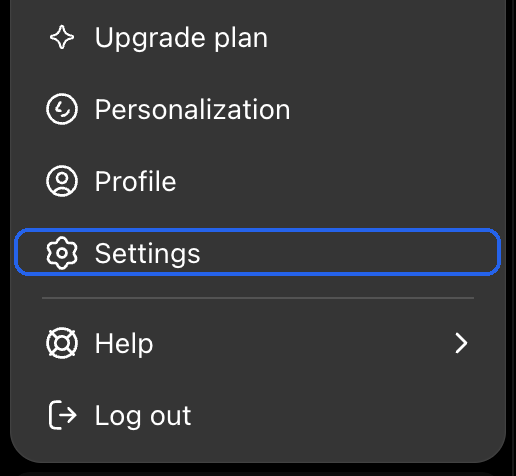
In ChatGPT, open your profile menu and click Settings.
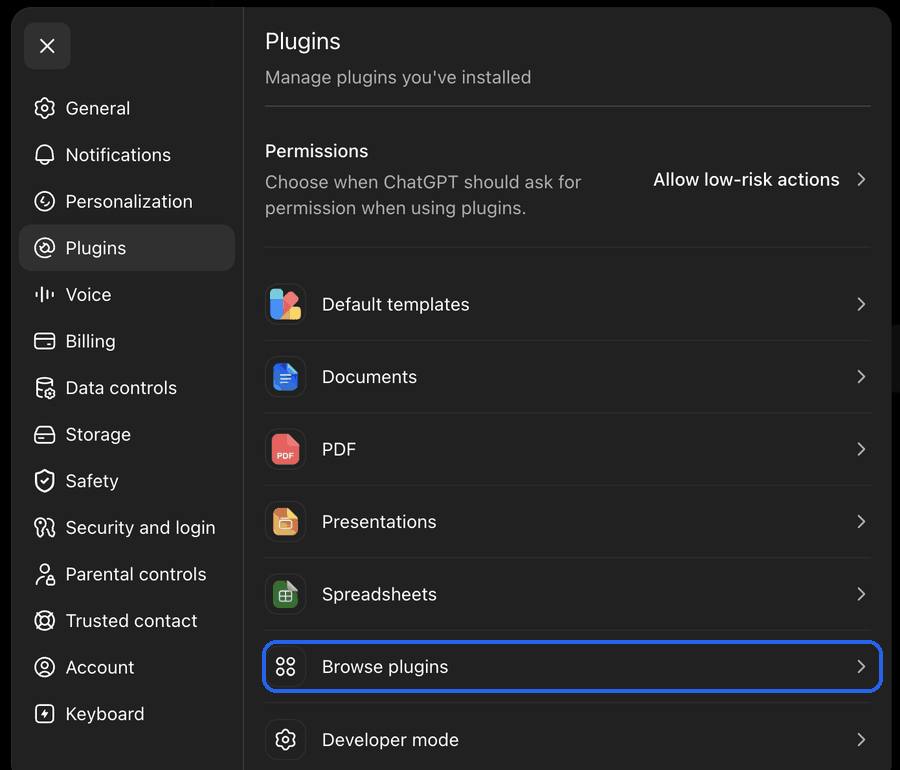
In Settings, choose Plugins, then click Browse plugins.
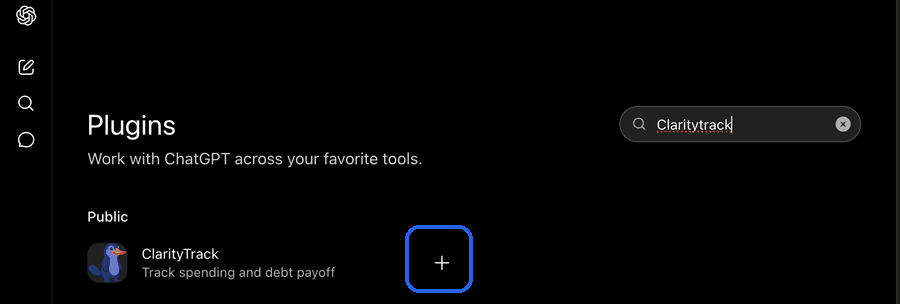
Search for ClarityTrack and click the plus button to add it.
Click Sign in with ClarityTrack.
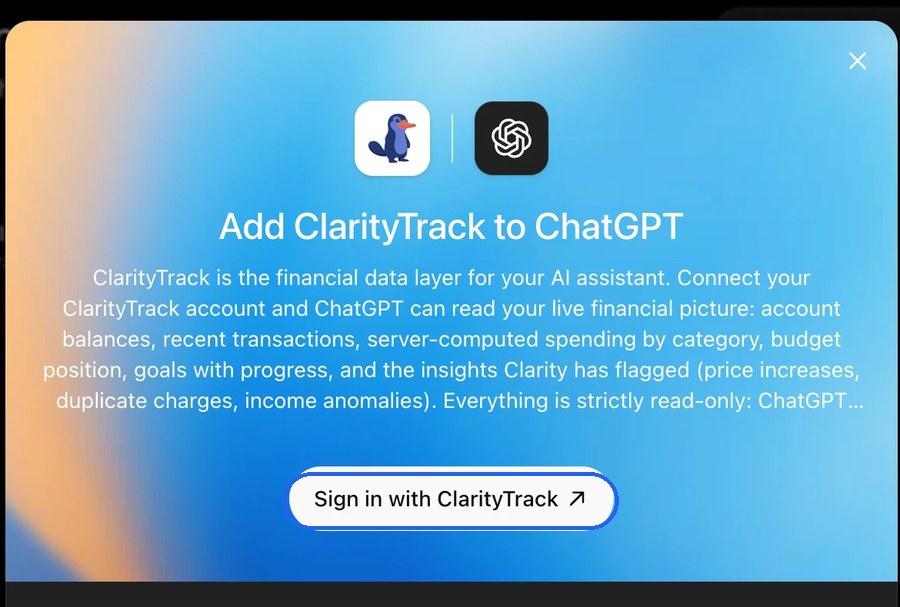
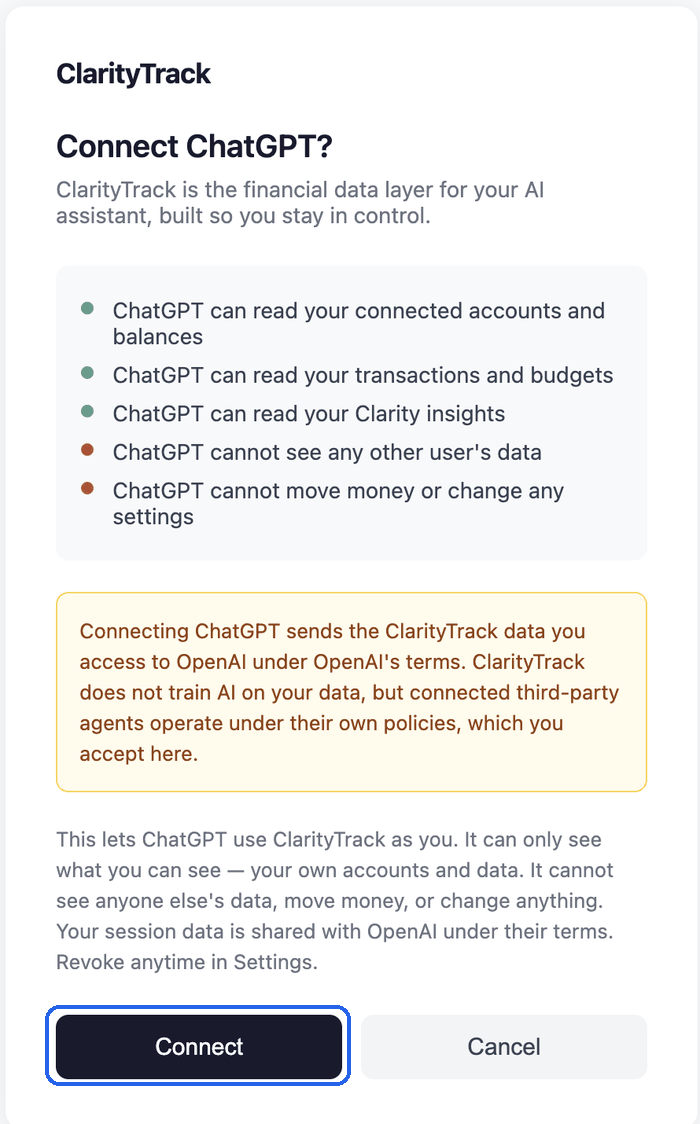
Review what ChatGPT can access, then click Connect.
Ask a question, for example "Show me my monthly dashboard" or "What did I spend on restaurants last month?"
For Claude or another MCP client: add a custom connector with the URL https://www.claritytrack.ai/mcp, then complete the sign-in and authorization screen that opens.
What the AI can see
Once connected, the AI can call ClarityTrack's read tools to fetch:
- Account balances and net worth
- Transaction history and spending by category
- Budgets and budget status
- Goals and financial insights
- Subscription status
The connection cannot move money or place trades. It cannot change anything else either, unless you turn on write actions for that specific connection under Settings, Connected agents. With write actions on, an assistant can propose a change such as logging a transaction or updating a goal, and it must preview the change and then commit it in a separate step. Access can be revoked at any time from Settings under Connected Agents, where every connected agent and what it accessed is listed.
Visual rendering in ChatGPT
In ChatGPT, your monthly summary and spending breakdown render as the same visual cards you see in the ClarityTrack app itself, not just a text summary. This widget rendering is rolling out. Other MCP clients, including Claude, return a formatted text summary; clients with their own canvas or artifact rendering can turn that summary into their own visuals.
Common questions
Do I need a ChatGPT Plus subscription?
No. The ClarityTrack ChatGPT App works on a free ChatGPT account.
Is my data safe?
Yes. The connection is read-only by default and uses OAuth, so your ClarityTrack password is never shared with ChatGPT, Claude, or any other client. You approve the connection once, and can revoke it at any time from Settings.
Can I connect more than one AI assistant?
Yes. You can connect ChatGPT, Claude, and any other MCP-compatible client at the same time. Each shows up as a separate entry under Connected Agents in Settings.
What can I actually ask it?
Try one of the copy-ready Money Skills on the Connect page, or ask in plain language: "What's my net worth?", "Which budgets am I over on this month?", or "Show me my monthly dashboard."